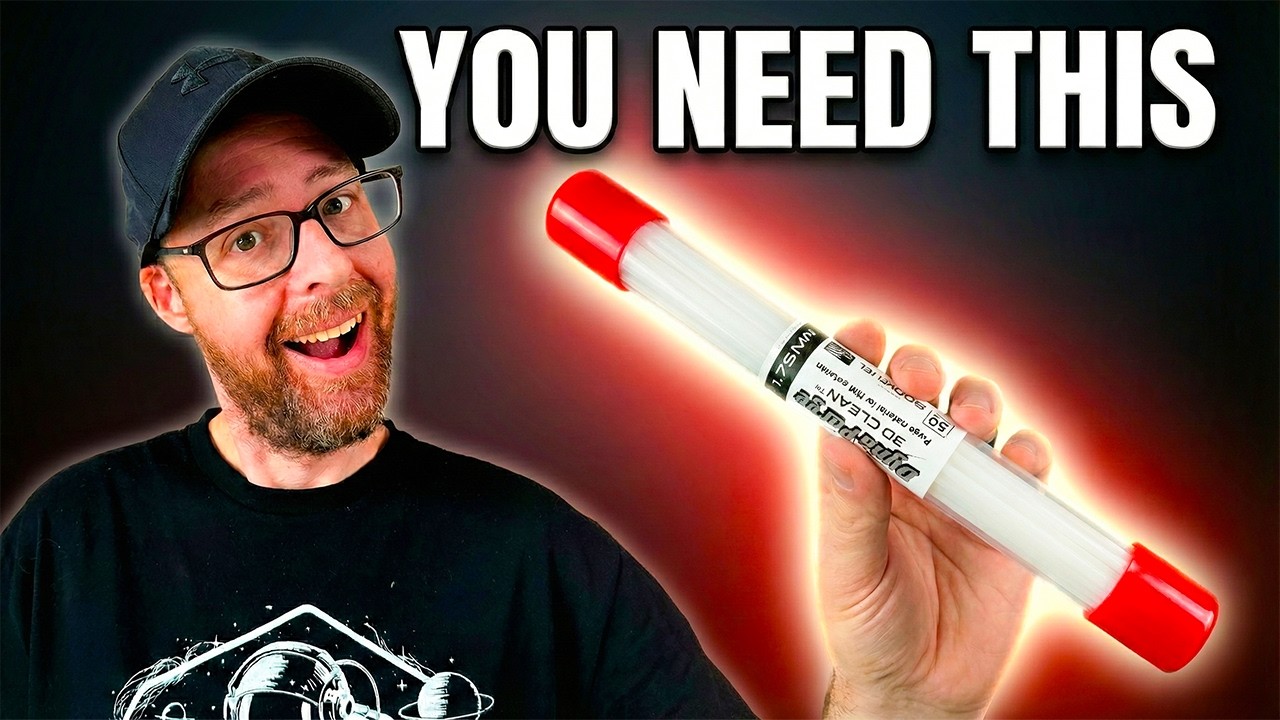
3D printer cleaning filament is a useful maintenance step when changing filament types or clearing leftover color from the hotend. I use 3D-Fuel cleaning filament to purge the old material before loading the next spool, watching the output change from the previous color to clear.
When I was switching materials, I noticed remnants of the previous filament coming through. Rather than starting another print with that mixed output, I stopped and cleaned the nozzle on my Creality Hi. Here is the straightforward process I used.
This article contains affiliate links. I may earn a commission if you purchase through these links. As an Amazon Associate, I earn from qualifying purchases.
When I use 3D printer cleaning filament
I reach for cleaning filament when changing materials or when an old color keeps appearing after a spool change. A normal purge is part of loading filament, but a dedicated cleaner gives me another way to work through material left in the hotend.
For this maintenance pass, I used 3D-Fuel filament cleaner in the 1.75 mm size. Check that the cleaner matches your printer’s filament diameter and follow the instructions included with the product.
How to use 3D printer cleaning filament
1. Prepare for 3D printer cleaning filament
Use your printer’s normal unloading procedure to remove the old filament. Prepare the printer for direct loading of the cleaning stick. On my Creality Hi, I disconnected the feed tube at the printhead so I could insert the cleaner directly into the filament inlet.
Follow your printer’s instructions for releasing that tube and connector. Keep your hands clear of the hot nozzle while handling the filament path.
2. Load 3D printer cleaning filament into the printhead
I inserted the cleaning stick into the inlet and used the printer’s extrusion function to feed it through. For this setup, I bypassed the CFS rather than attempting to load the short stick through the automatic material system.
Check the 3D-Fuel cleaning filament instructions and your printer’s temperature limits before starting. Use the appropriate cleaning procedure for the material being removed.
3. Extrude and watch the output
As the nozzle heated and the cleaner moved through, the first output still contained yellow from the previous material. I continued the extrusion process and watched that yellow give way to clear material.
This is the comparison I find most useful: look at the beginning and end of the purged strand. Mine started yellow and finished clear, showing that the visible leftover color had been flushed through.
4. Reload the next filament and purge again
Finish the cleaning cycle according to the product instructions, then restore the normal feed path. Load the next filament using your printer’s usual process and extrude until the output is consistent with the new material and color.
Before starting a print, select the correct filament profile and bed setup for that material. Cleaning the hotend and choosing the correct print settings are separate steps, and both belong in the changeover routine.
What to look for after using 3D printer cleaning filament
Check the extruded material before returning to a larger project. If the previous color is still present, the changeover is not finished. If the printer cannot feed or extrude normally, follow its clog-troubleshooting procedure instead of forcing filament into the inlet.
Clear purge output is a useful visual sign that old color has been removed. It does not establish that every extrusion problem is solved. If poor output continues, investigate the filament path and hotend before running another long print.
Tools and materials for the next spool change
The main item I used was 3D-Fuel cleaning filament. You can find this and the other supplies linked in my tutorials on my Tools & Gear page, organized by category.
For your next spool, you can also browse SUNLU filament through my affiliate link. Check the material specifications before selecting a profile.
Frequently asked questions
Can I feed the cleaning stick through a CFS?
For my Creality Hi maintenance pass, I bypassed the CFS and inserted the stick directly at the printhead. Follow the loading instructions for your cleaner and printer rather than assuming a short cleaning stick can follow the same route as a spool.
How do I tell when the old color is gone?
Watch the purged strand as it leaves the nozzle. My output changed from yellow to clear. After loading the new filament, check that its color comes through consistently before starting the next print.
Does 3D printer cleaning filament replace other maintenance?
No. It is one part of a material-change routine. A printer that cannot extrude may need additional troubleshooting, and you still need the correct slicer profile for the new spool.
For more practical maintenance tips and builds, Subscribe to Fix This. Print That. on YouTube.